Handler Dashboard
Your command centre for monitoring conversations, tasks, drafts, and suggested actions.
On this page
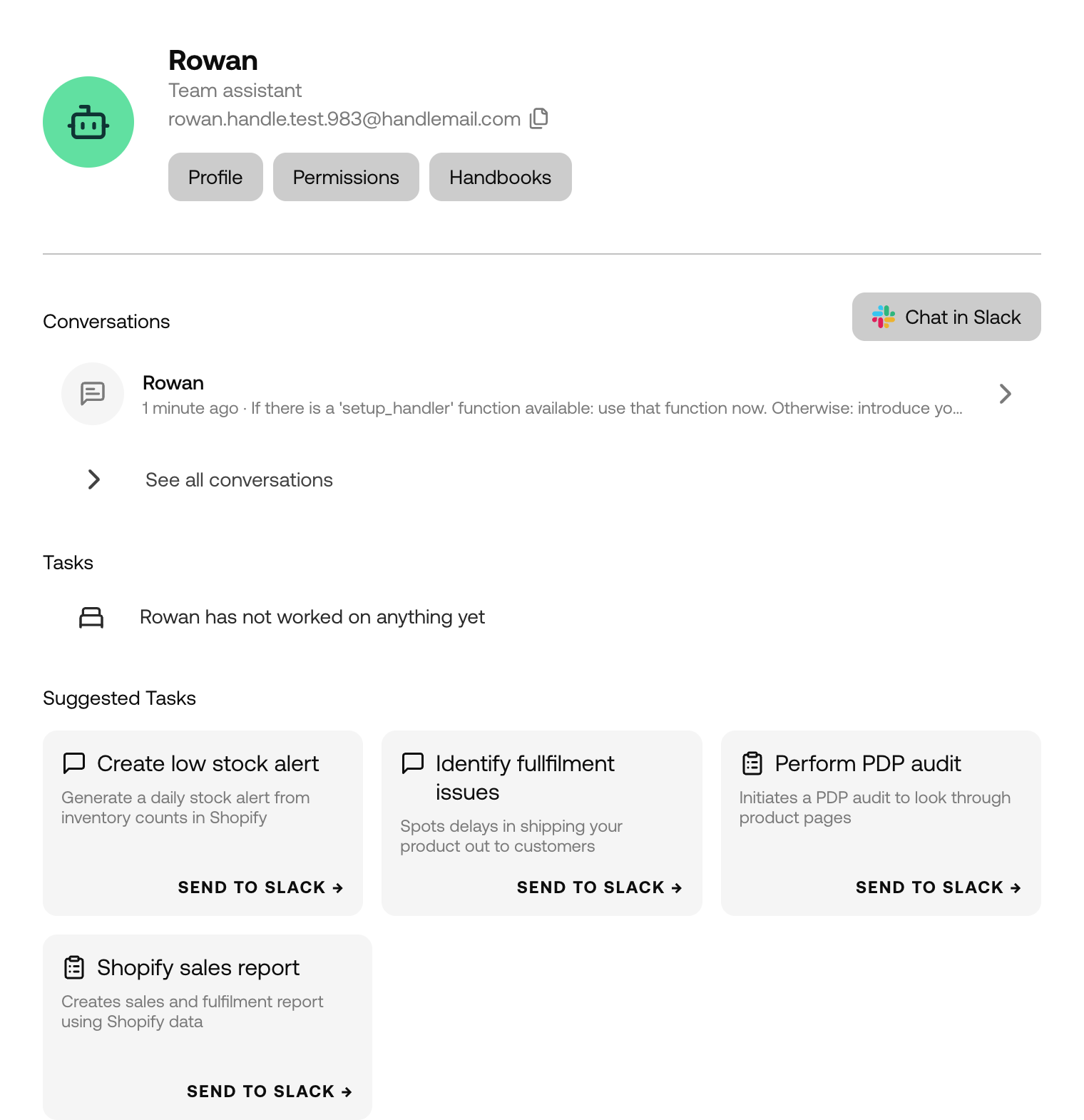
The Handler Dashboard is your command centre for keeping tabs on what your Handler is up to. It gives you a real-time view of active conversations, ongoing tasks, and any messages waiting for your approval — all in one place.
Editing Your Handler’s Profile
At the top of the dashboard, you’ll see your Handler’s name, subtitle, and email address. Need to make changes? Hit the Profile button to update your Handler’s settings — the same ones you configured during the creation flow (name, email, job title, purpose, and tone of voice).
You’ll also find quick-access buttons for Permissions and Handbooks here.
Message Drafts (Approvals)
When your Handler composes a message that requires your sign-off before sending, it’ll appear here as a draft.
Each draft shows:
- A “Draft ready” indicator
- The conversation the draft belongs to
Click on a draft to review it and take action. Approvals are also available in Slack, so you can handle them wherever’s most convenient.
This section only appears when there are drafts waiting for your review.
Conversations
This section shows your Handler’s most recent conversations — the latest three, ordered by most recently active.
For each conversation, you’ll see:
- The platform it’s happening on (Slack, email, or other)
- The conversation title
- A timestamp and preview of the most recent message
Click any conversation to dive into the full thread. If your Handler has more than three active conversations, use the “See all conversations” link to view the complete list.
A “Chat in Slack” button is also available to jump straight into Slack.
If your Handler hasn’t been part of any conversations yet, you’ll see a friendly empty state letting you know.
Tasks
Tasks represent the work your Handler is actively solving. The dashboard shows the three most relevant tasks, prioritised by active tasks first, then most recently updated.
For each task, you’ll see:
- A status indicator — active (orange dot), blocked (hourglass), or resolved (check mark)
- The task title
- How long the task has been active
- Who’s involved (e.g. “with Sarah” or “with Sarah + 2 others”)
- For resolved tasks, a summary of the result
- If a task has subtasks in progress, the first one is shown nested underneath
Click any task to view its full details. Use “See all tasks” for the complete list.
Suggested Tasks
Suggested tasks are pre-configured quick-start actions that let you kick off common workflows with a single click. They appear as cards showing a title, description, and icon.
Click “Send to Slack” on a card to start the task, then “Open in Slack” to continue the conversation there.
Suggested tasks are powered by your Handler’s installed Handbooks. If none are showing, try installing some Handbooks to unlock suggestions.
Note: Suggested tasks are a newer feature and may not be available for all accounts.