Handler Connected Integrations
Control which integrations each Handler has access to, including switching between multiple accounts.
On this page
Connected Integrations let you control which integrations each Handler has access to. By default, Handlers can connect to any integration that’s been set up for your workspace — but you can fine-tune this so that different Handlers access different accounts, auth tokens, or platforms.
This is especially useful when you have multiple connections for the same integration (e.g. two different Shopify stores) and want specific Handlers to use specific accounts.
Getting There
From the Handler Dashboard, click Handbooks. The Connected Integrations section appears on this page alongside your Handler’s installed Handbooks.
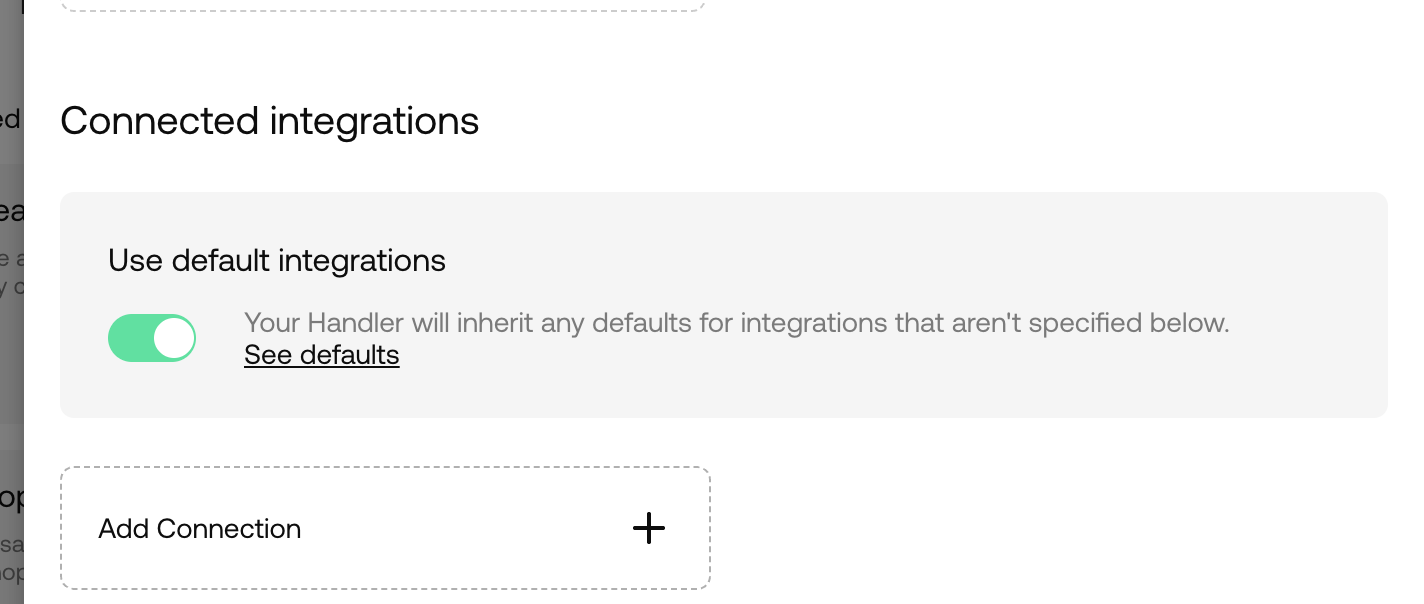
Default Integrations
At the top of the Connected Integrations section, you’ll find the “Use default integrations” toggle.
- On (default): Your Handler will automatically inherit any default integrations set up for your workspace. You can still add specific connections below, and those will take priority.
- Off: Your Handler is restricted to only the integrations you’ve explicitly added below. It won’t inherit anything from workspace defaults.
This gives you the flexibility to let most Handlers “just work” with your existing integrations, while locking down specific Handlers when you need tighter control.
Managing Connections
Below the default toggle, you’ll see a list of integrations explicitly connected to this Handler. Each card shows:
- The integration logo and name
- The connection instance in use (e.g. which specific account or auth token)
Adding a Connection
Click “Add Connection” to link a new integration to your Handler. You’ll be presented with the available integrations and their connection instances.
Switching Between Connections
If you have multiple connections for the same integration (say, two Zendesk accounts), you can switch which one a Handler uses:
- Click the three-dot menu on the integration card
- Select Switch
- Choose the connection instance you’d like to use
The Switch option is only available when multiple connection instances exist for that integration.
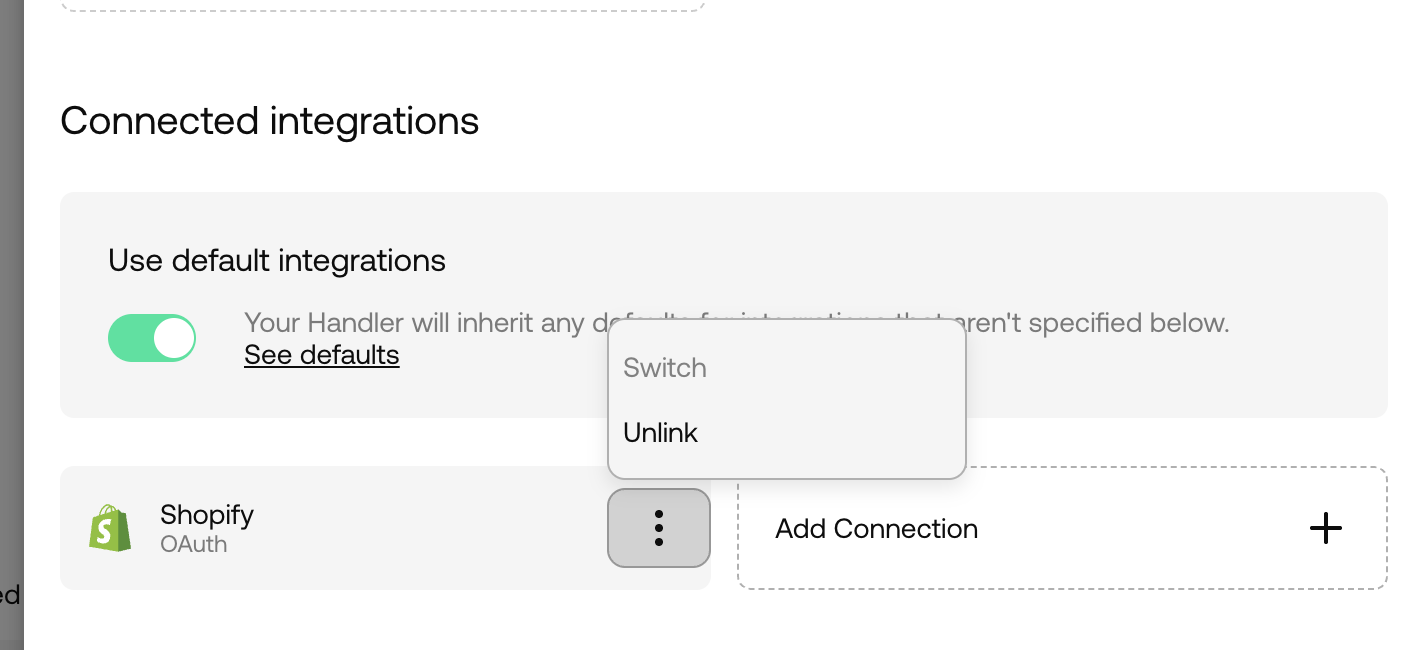
Unlinking a Connection
To remove an integration from a Handler:
- Click the three-dot menu on the integration card
- Select Unlink
This removes the explicit connection. If the default integrations toggle is on, the Handler may still inherit access to that integration via workspace defaults.