Manage Handle from Chat
Review Handler activity, update Handbooks and manage the connections your workspace relies on, right from Chat.
On this page
When a Handler’s work needs a correction, the conversation is only part of the job. You may also need to change its instructions or check what it can access. You can now do that in Handle Chat: review the work, open the relevant Handbook, and adjust the playbook where you’re already talking to your Handler.
The existing Handle console is being sunset and will be replaced by Handle Chat. We’re excited about everything the new Handle Chat experience is enabling — working with your Handlers and managing your workspace from one place: the conversations, the Handbooks that shape how they work, and the connections they rely on.
Set up, then supervise
A Handler is the AI teammate that does the work. Creating one no longer means switching tools: in Chat you can describe what they’re for and how they should talk, connect them to the integrations they need, and share them with the rest of your workspace. A name and a job title get a Handler started; its purpose and its tone of voice — how it approaches the work and how it should write — are there when you want to set them.
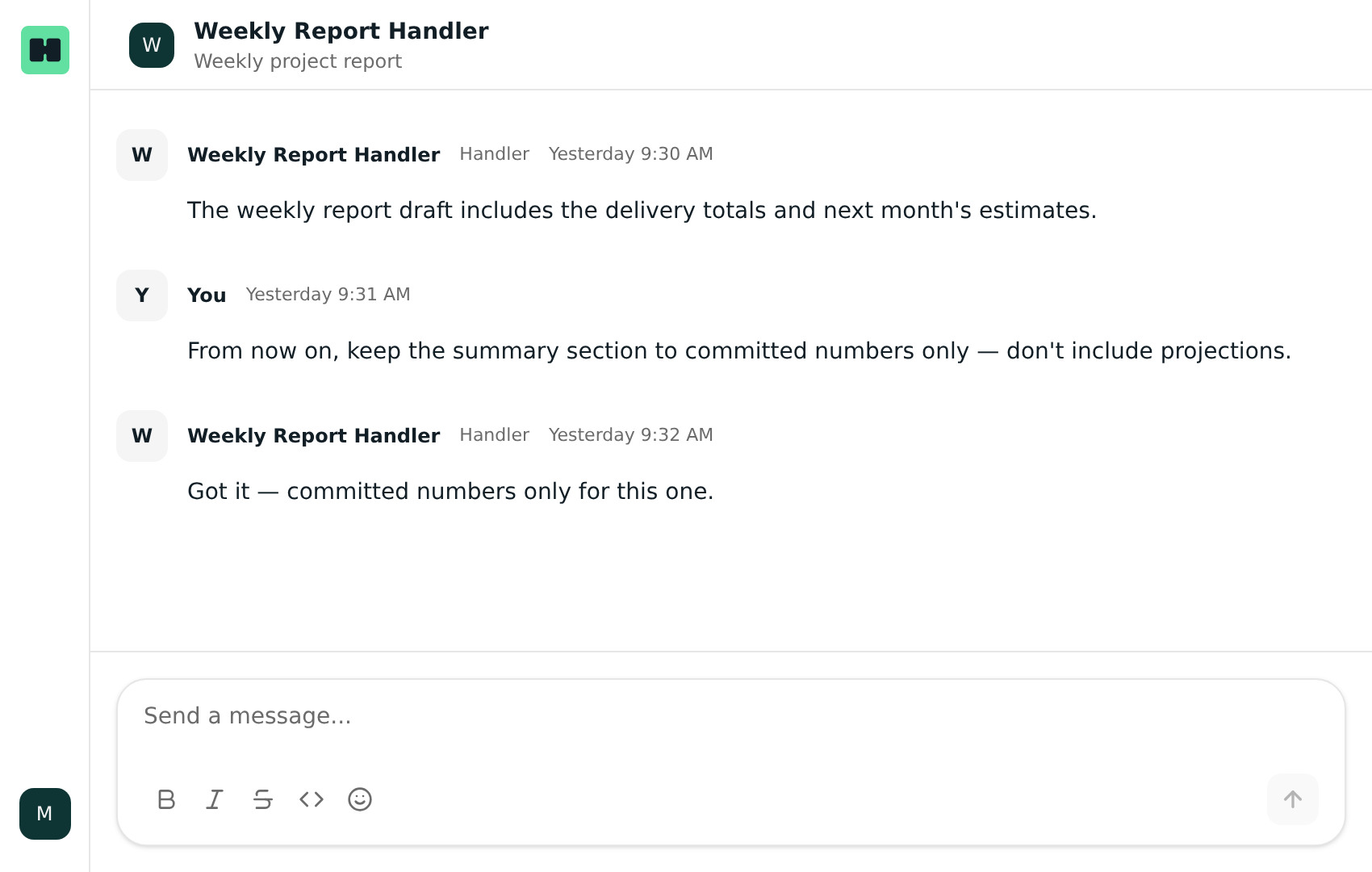
Once a Handler is working, you can review its activity and task summaries in Chat and check its permissions. If you created a schedule for it, you can pause or resume that schedule. Task summaries describe the work that’s been done in concise steps, with citations to what the Handler looked at along the way, and they’re generated when you open the task. A Handler’s manager can see all of that Handler’s task activity, including work that ran on a schedule rather than in a conversation. These views let you inspect the work; what you can change still depends on your workspace role.
For example, if a Handler that prepares your weekly status report starts drifting from the brief, its activity shows what it actually did — the steps it took, the sources it cited — before you decide whether the instructions or the workload need attention.
Change the playbook in the moment
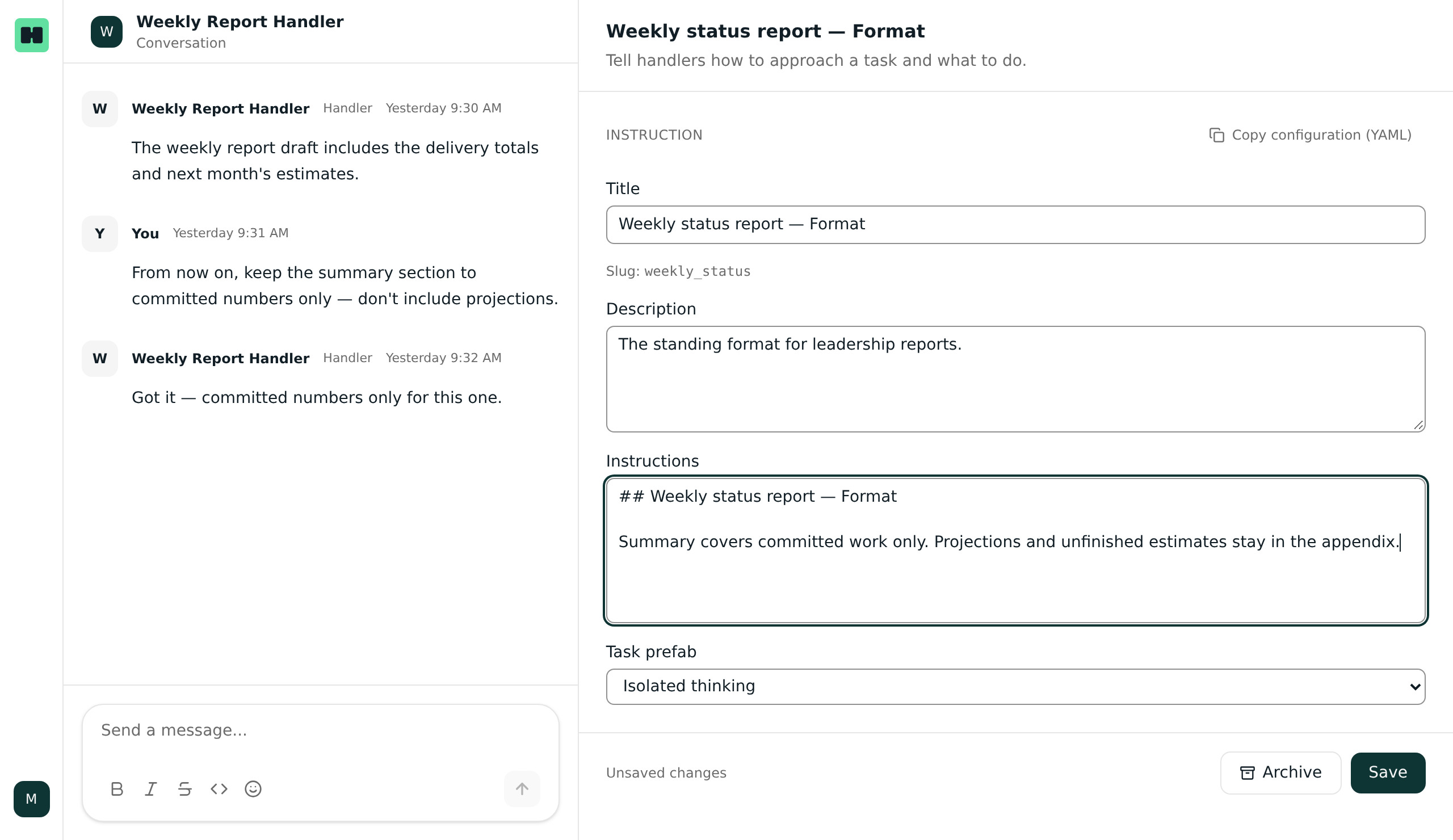
Handbooks are how you capture the way you want things done — the procedures, preferences and ground rules your Handlers follow. Some feedback belongs in the conversation: a one-off instruction for one task. When a correction should hold for every task that follows, it belongs in the Handbook, where it shapes the work each time.
You can read Handbook entries inline while you’re talking to a Handler, and edit Handbooks in Chat — workspace admins can edit workspace-wide handbooks.
For example, if a Handler prepares your team’s status report, its Handbook can describe the format to follow. If that format changes, open the relevant entry beside the conversation, update it, and the Handler works from the updated instructions — instead of a note to fix it in a separate tool later.
Handlers can also have Handbooks installed into them directly, and you can install or uninstall a Handbook for any Handler you own.
Know which connections are available
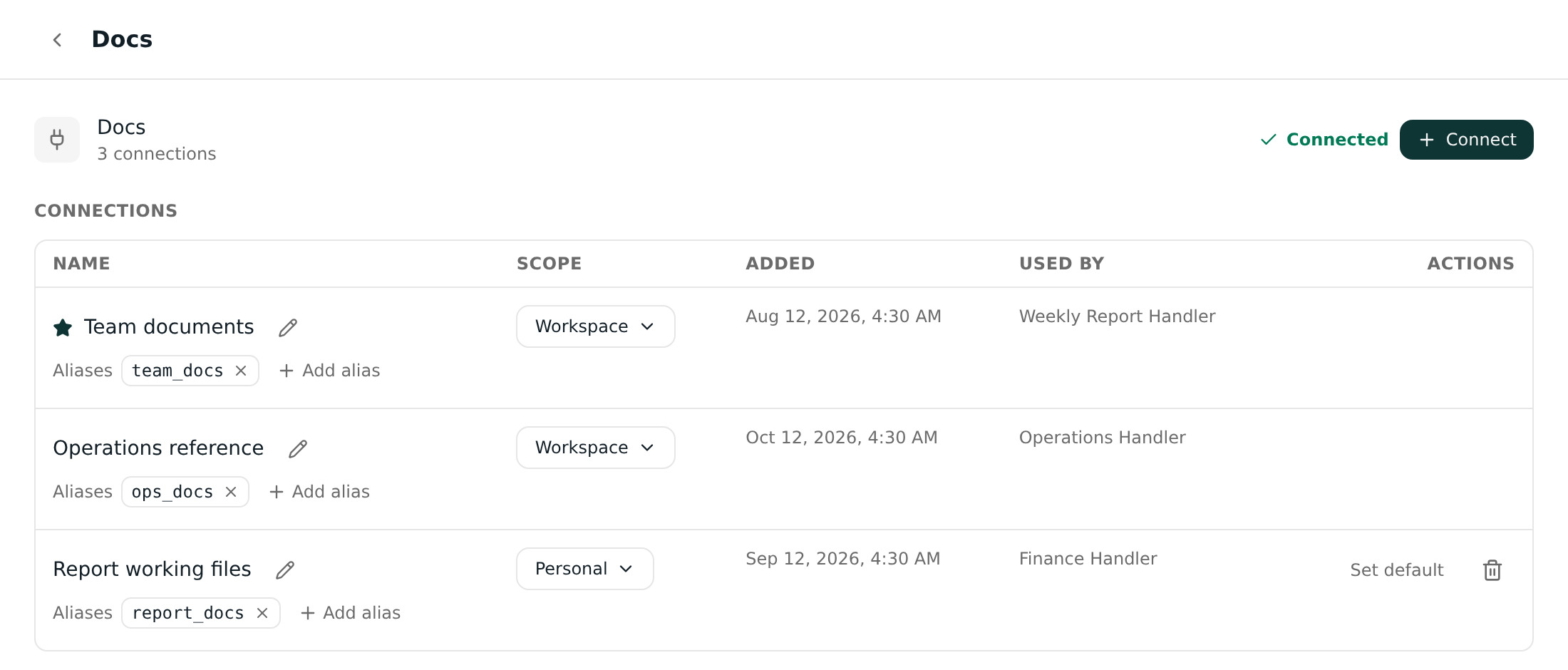
Every integration connection in your workspace is laid out in a table: what’s connected, whether it’s a workspace-wide connection or a personal one, when it was added — and which Handlers are using it. A workspace-wide connection is there for everyone, while a personal one stays yours. A workspace admin can move a connection between the two.
Connections can be renamed so the people reading the table can tell them apart, and given aliases — the name a Handler uses to address a specific connection. That matters when the same service is connected more than once for different accounts: connections that would otherwise look identical are separated by when they were added, and an alias points a Handler at the right one.
Handler management and Handbook editing are widely available in Handle Chat, and what you can change still depends on your workspace role. Handle itself remains invite-only — new people join through a workspace invitation. These updates are available now in Handle Chat.