Inspecting a Task
Understand how to monitor, navigate, and review your Handler's task tree and conversation threads.
On this page
What is a Task?
A task is an agentic unit of work that a Handler performs — whether in response to a user request, or as a background task triggered by a schedule or webhook. A task can include any number of subtasks, tool calls, and thought processes as the Handler works through what’s been asked of it. It also acts as a permanent record of how the work was performed, so you or your Handler can go back and understand it later.
Opening a Task
There are a few ways to get to a task:
- From the Handler Dashboard or Tasks list, click on any task to open it
- From Slack, click the “View conversation in Handle” link at the top of the thread to open the conversation in Handle, then click on the task status message in the conversation view to jump straight to the task
Getting the Lay of the Land
When you open a task, you’ll immediately see:
- The task title and how long it’s been active or when it completed
- For finished tasks, a result summary with a green check mark showing the outcome at a glance
Handlers typically break work into a tree of nested subtasks. The breadcrumb trail at the top shows you exactly where you are in that tree — from the root task all the way down to the subtask you’re currently viewing. Click any ancestor to zoom back out.
Seeing What’s Happening Now
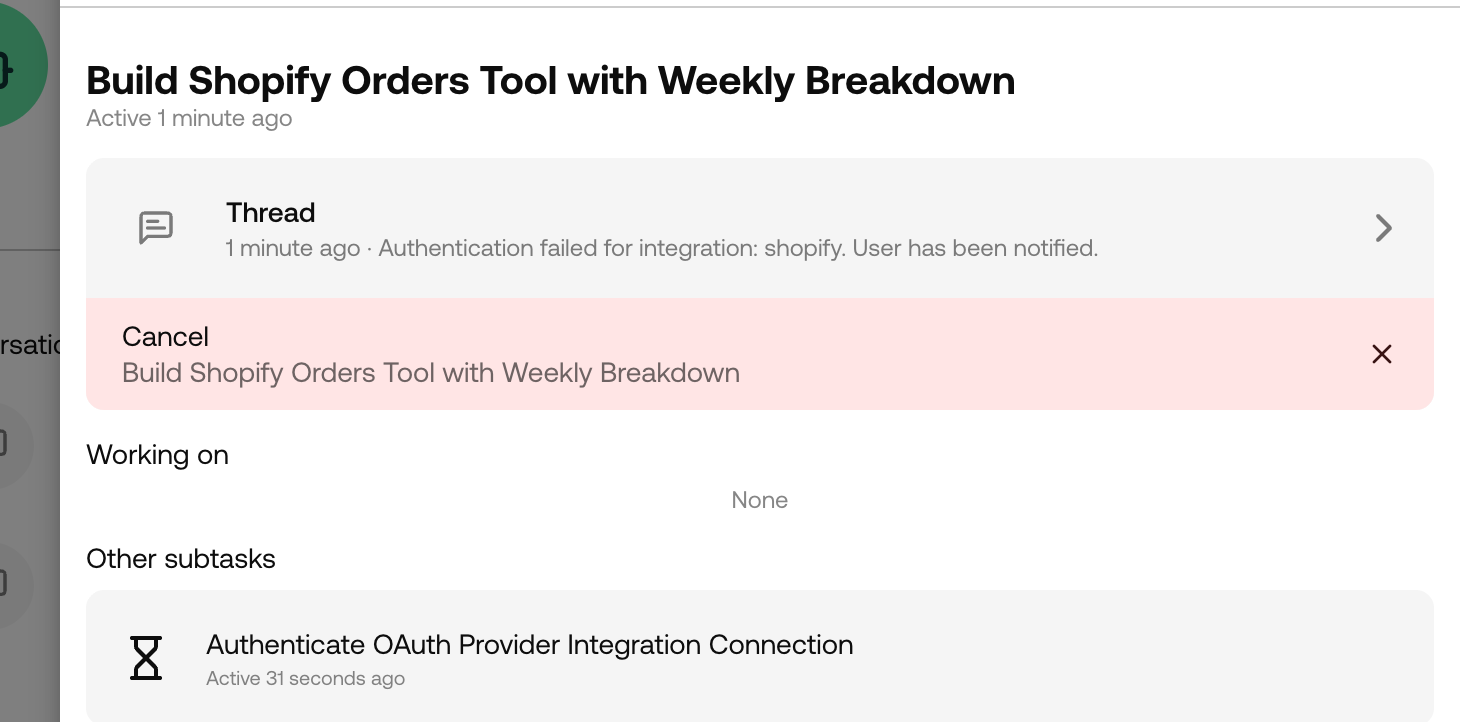
The Working On section shows subtasks that are currently active and unblocked — the work your Handler is doing right now. For each one, you’ll see:
- A status indicator — orange dot for active, hourglass for blocked
- The subtask title and how long it’s been running
- Who’s involved (e.g. “with Sarah + 2 others”)
- If a subtask has its own children, the first active child is shown nested underneath
This is your at-a-glance view of what’s in flight.
Reviewing What’s Done
The Other Subtasks section shows subtasks that are either completed or blocked. Completed tasks show a green check mark and a result summary so you can quickly see what was accomplished without clicking in.
Digging Deeper
Every subtask card is clickable. Click through to see its own details page — complete with its own subtasks, breadcrumbs, and conversation thread. You can navigate as deep into the task tree as you need, then use the breadcrumbs to jump back up.
This makes it easy to start with a high-level view, spot something interesting, drill down to the specifics, and navigate back out — all without losing your place.
Reading the Conversation
Each task is linked to a conversation thread where the actual back-and-forth happened. You’ll see the conversation title, which platform it took place on, and a preview of the most recent message. Click through to read the full exchange.
Stopping a Task
If something’s gone sideways and you need to pull the plug, hit the Cancel button. This cancels the entire root task (not just the subtask you’re viewing). The button clearly shows which root task will be cancelled, so there are no surprises.