Reviewing Draft Actions and Messages
Learn how to review, approve, or reject draft messages and actions before your Handler sends them.
When a Handler needs your approval before sending a message or performing an action, it creates a draft. Drafts are your checkpoint — a chance to review what the Handler plans to do before it actually does it.
Where Drafts Appear
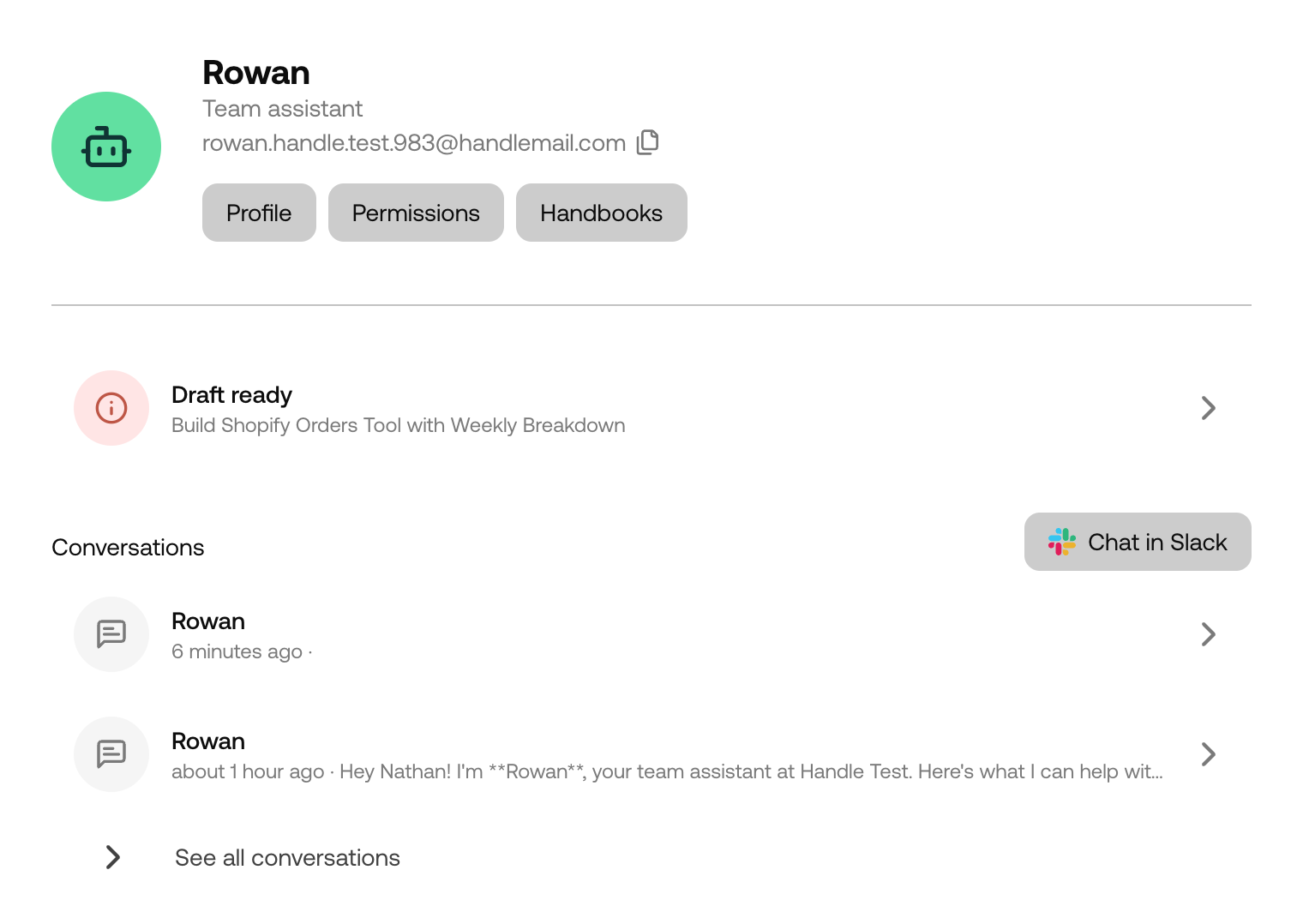
Drafts show up in two places:
- Handler Dashboard — The “Message Drafts” section at the top shows all pending drafts
- Slack — You’ll receive a notification in the relevant thread with the draft content and approval buttons
Reviewing a Draft
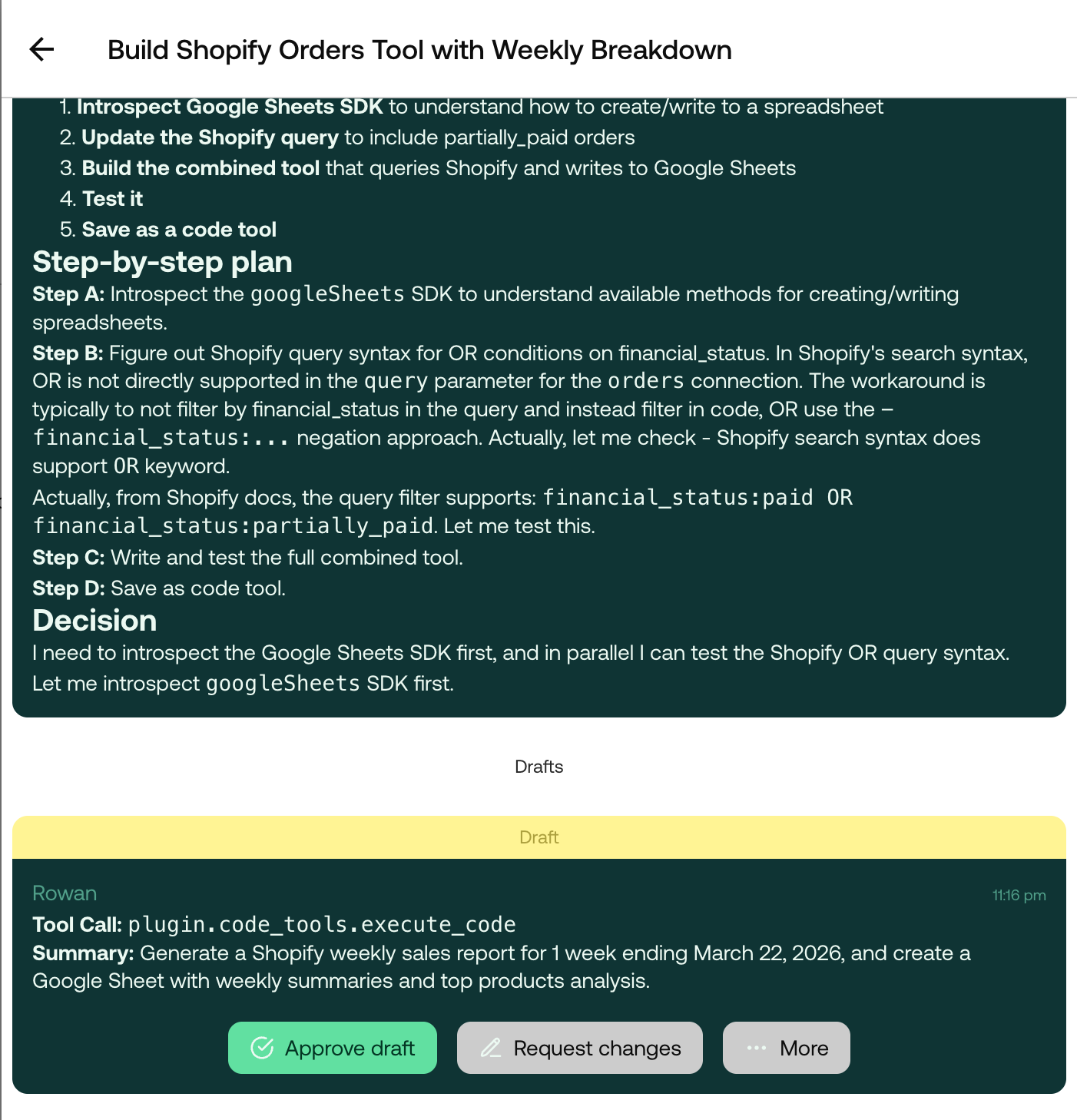
Each draft includes:
- The full message or action the Handler wants to take
- The conversation context — who it’s for and where it’ll be sent
- Approve and Reject buttons
Take a moment to read through the draft carefully. The Handler has composed this based on the conversation context and its available knowledge.
Approving a Draft
When you approve a draft:
- The message is sent (or the action is performed) immediately
- The Handler continues with its task, knowing the approval has been granted
- The draft is removed from your pending list
Rejecting a Draft
When you reject a draft:
- The message is not sent and the action is not performed
- You can optionally provide feedback explaining why you rejected it
- The Handler takes your feedback into account and may revise its approach
Providing feedback on rejections helps your Handler learn and improve over time.
Best Practices
- Review promptly — Pending drafts can block your Handler from making progress on a task
- Give feedback on rejections — The more context you provide, the better your Handler gets at drafting appropriate responses
- Use permissions to control draft frequency — If you find yourself approving every draft from a particular tool, consider switching that tool’s permission from “Ask” to “Allow”